Publish your store with a Commmerce plan - Click here to pick a plan
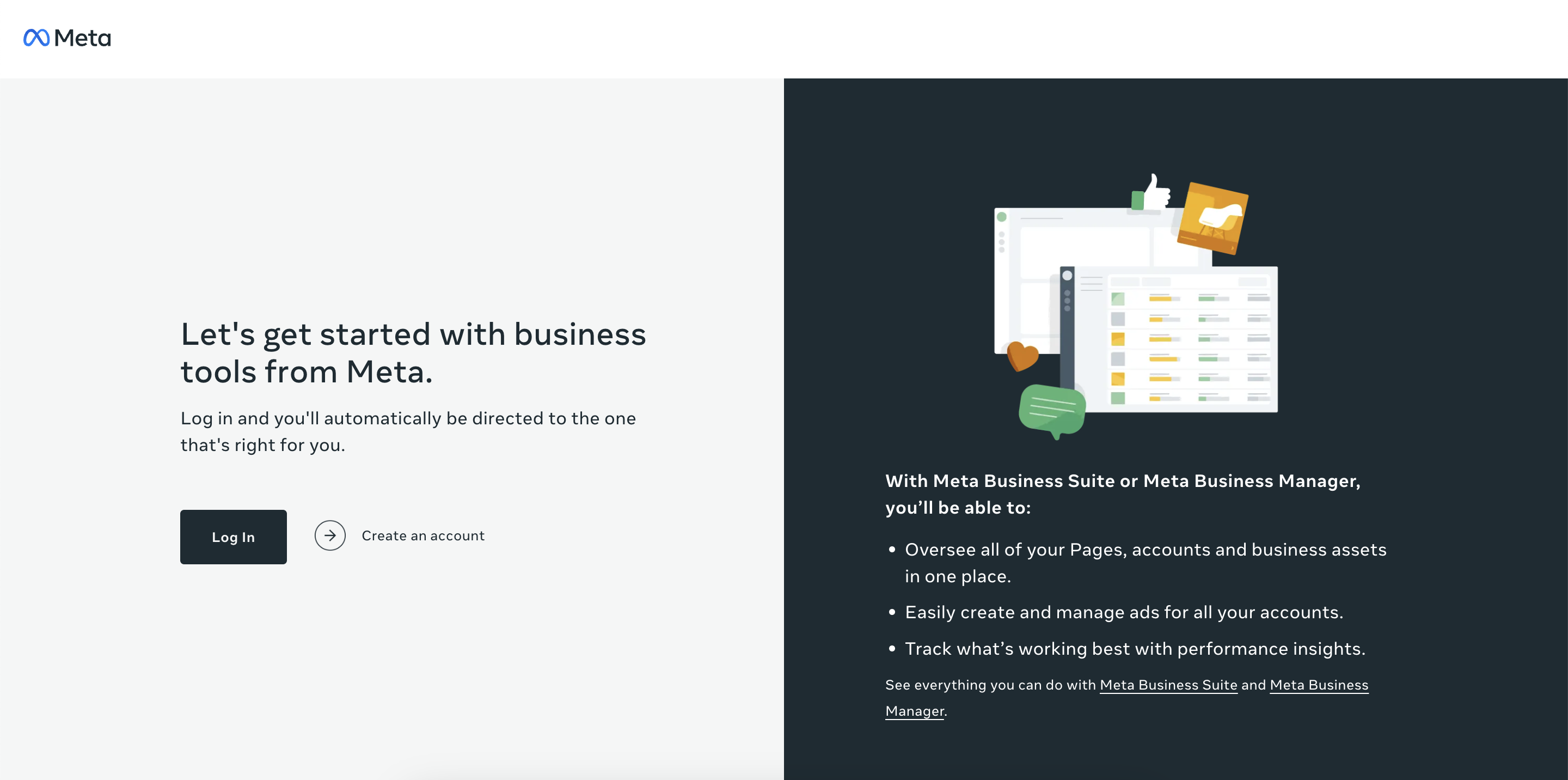
Go to https://business.facebook.com/
Click "Create an account"


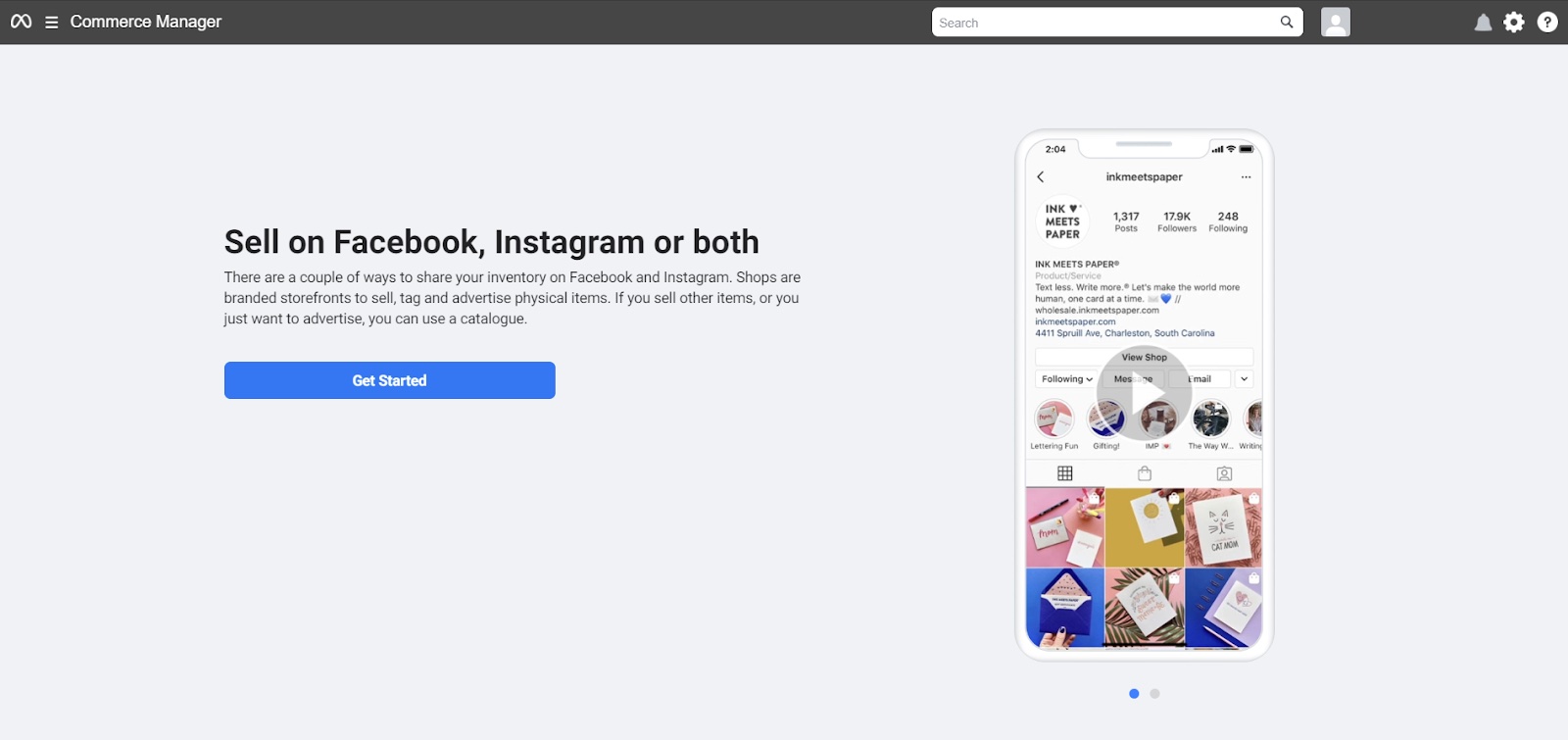
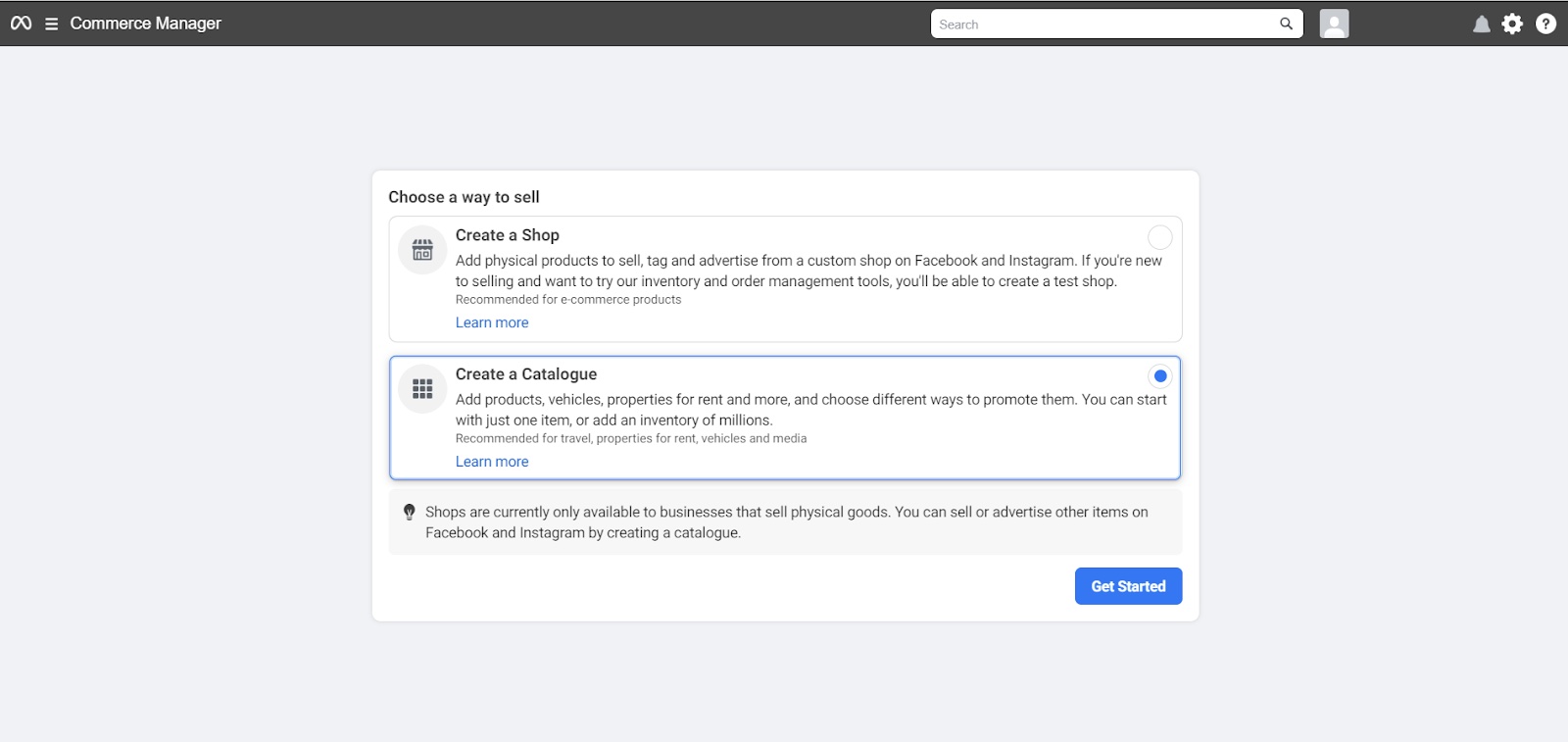
Select create a catalog
Click get started

Select upload product info
Enter any catalog name (you should select this catalog while setting up the Facebook ad campaign)
Click "Create"

Go to "Data Sources" under Catalogue
Select "Data Feed"
Click "Next"

Before proceeding to the next step
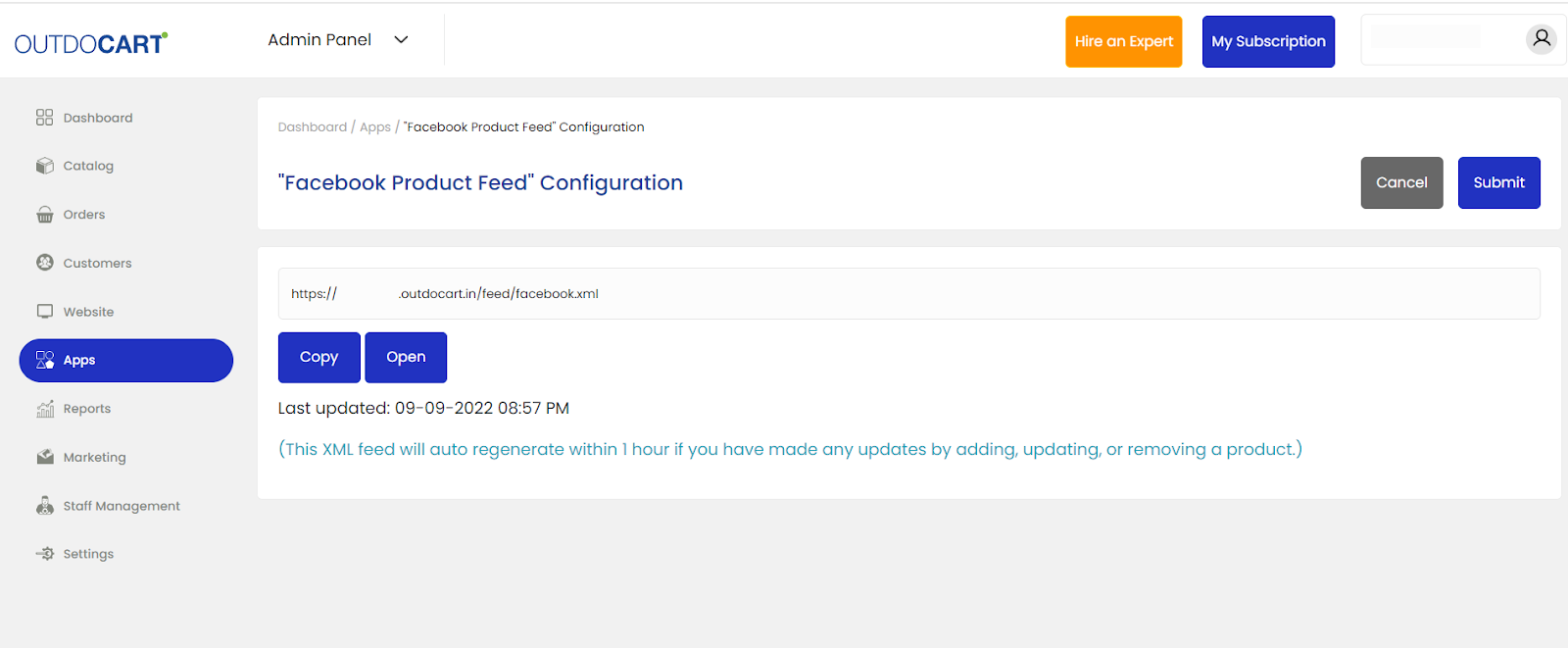
Go to Commmerce admin, go to the apps, open “Facebook product feed” and click generate.
A new XML file would be generated and the XML URL will be shown like the below screenshot.
Click on copy
Select “Use a URL”
Paste the URL copied from Commmerce Admin
Click "Next"
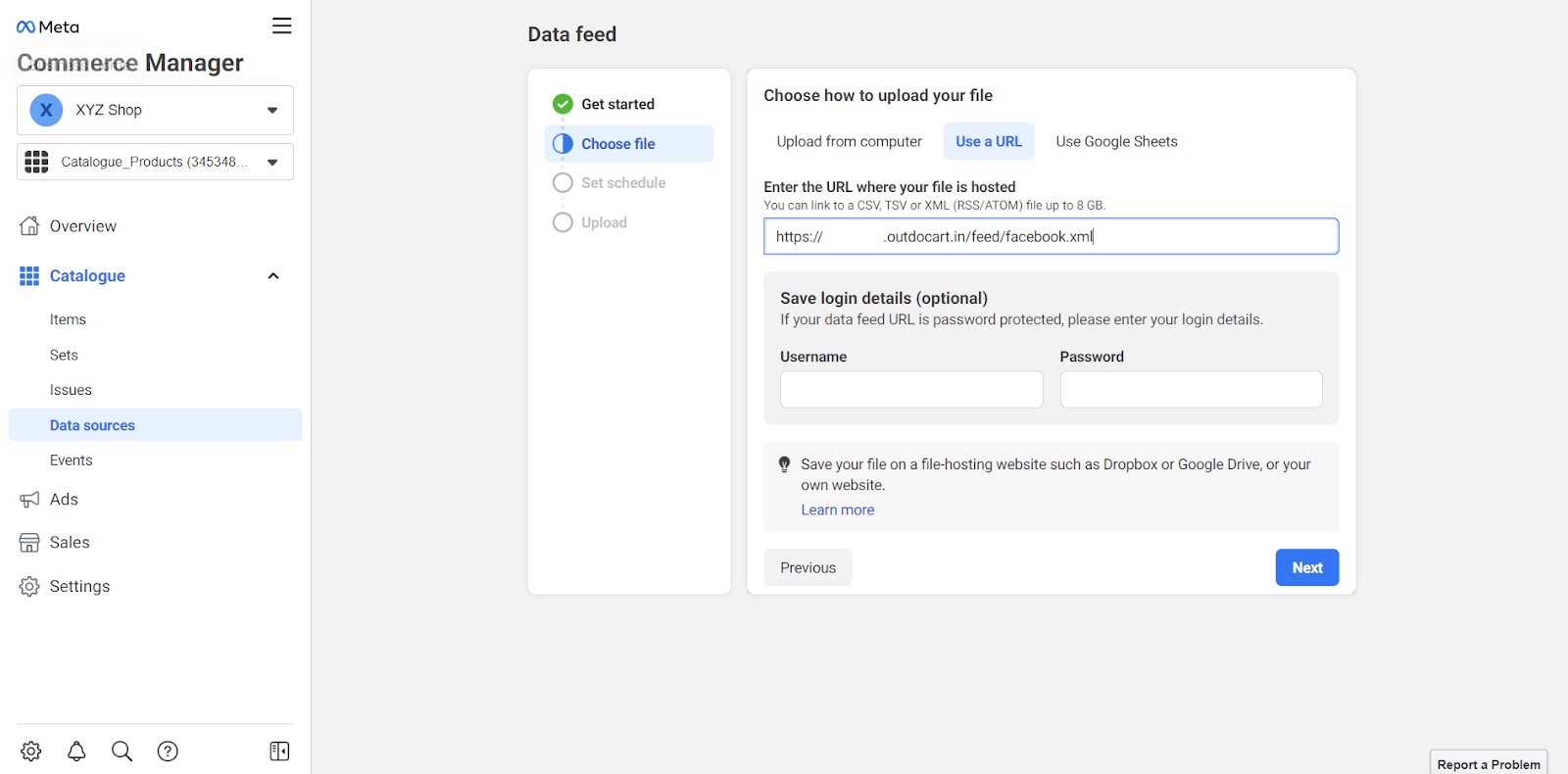

In this example, we are considering India as the market, so change the currency to INR
Click "Next"


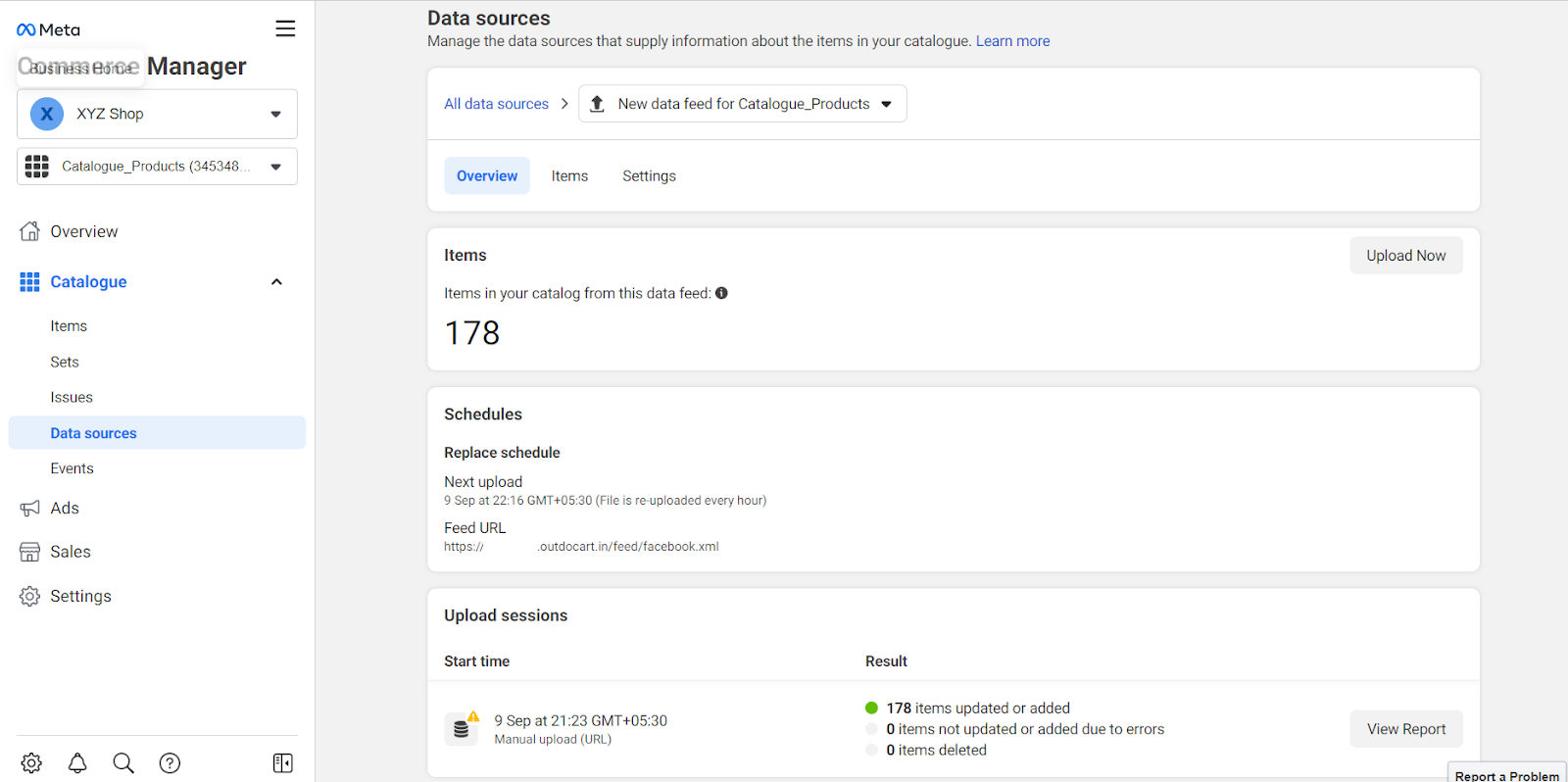
Go to items under catalogue, here you can see the list of products that are synced.
Now, you can start setting up a Facebook ad campaign with this catalogue.